
Nabto WebRTC Products and Devices
Open WebRTC Products under WebRTC Signaling in the left menu to see the Nabto WebRTC products in the current organization. The list shows each product’s region, the number of signaling messages and relayed traffic this month and the number of devices. Click a product ID or its device count to go to the device list. Click settings to open the product.
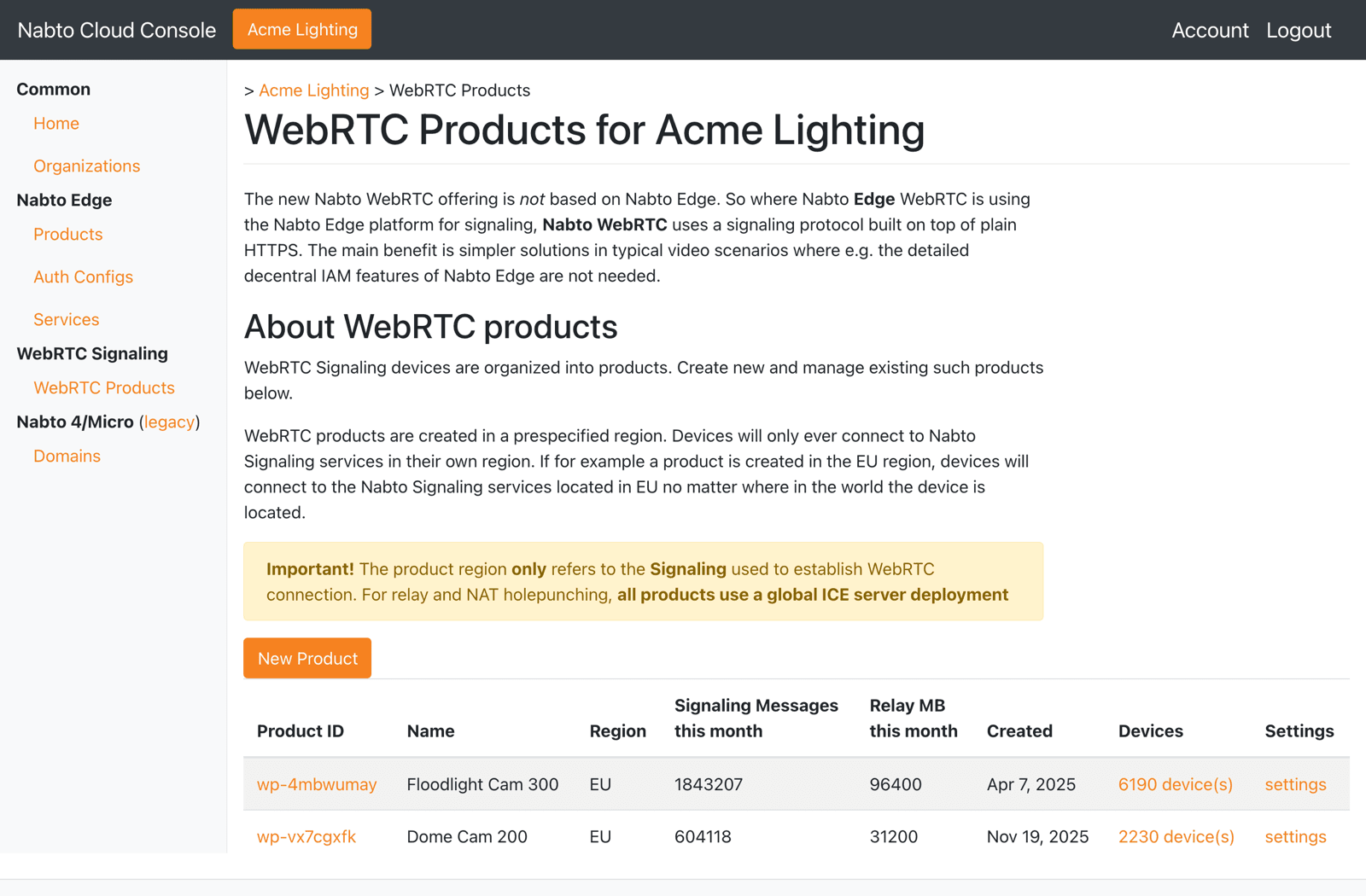
Click New Product to create a product. Choose the region and optionally give the product a name:
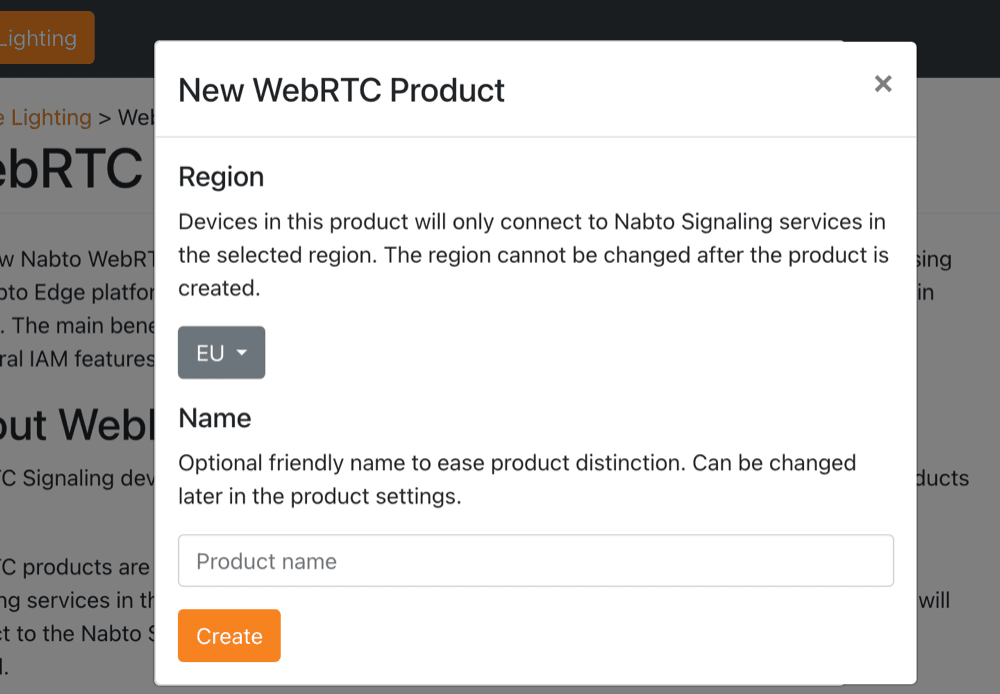
The region determines which Nabto WebRTC signaling service the product’s devices connect to, regardless of where the devices are located. It cannot be changed after the product is created. If the organization has EU data residency, only the EU region is available. The region only applies to signaling: Relay and NAT traversal use a global ICE server deployment for all products. See Signaling Configuration for background.
Product Page
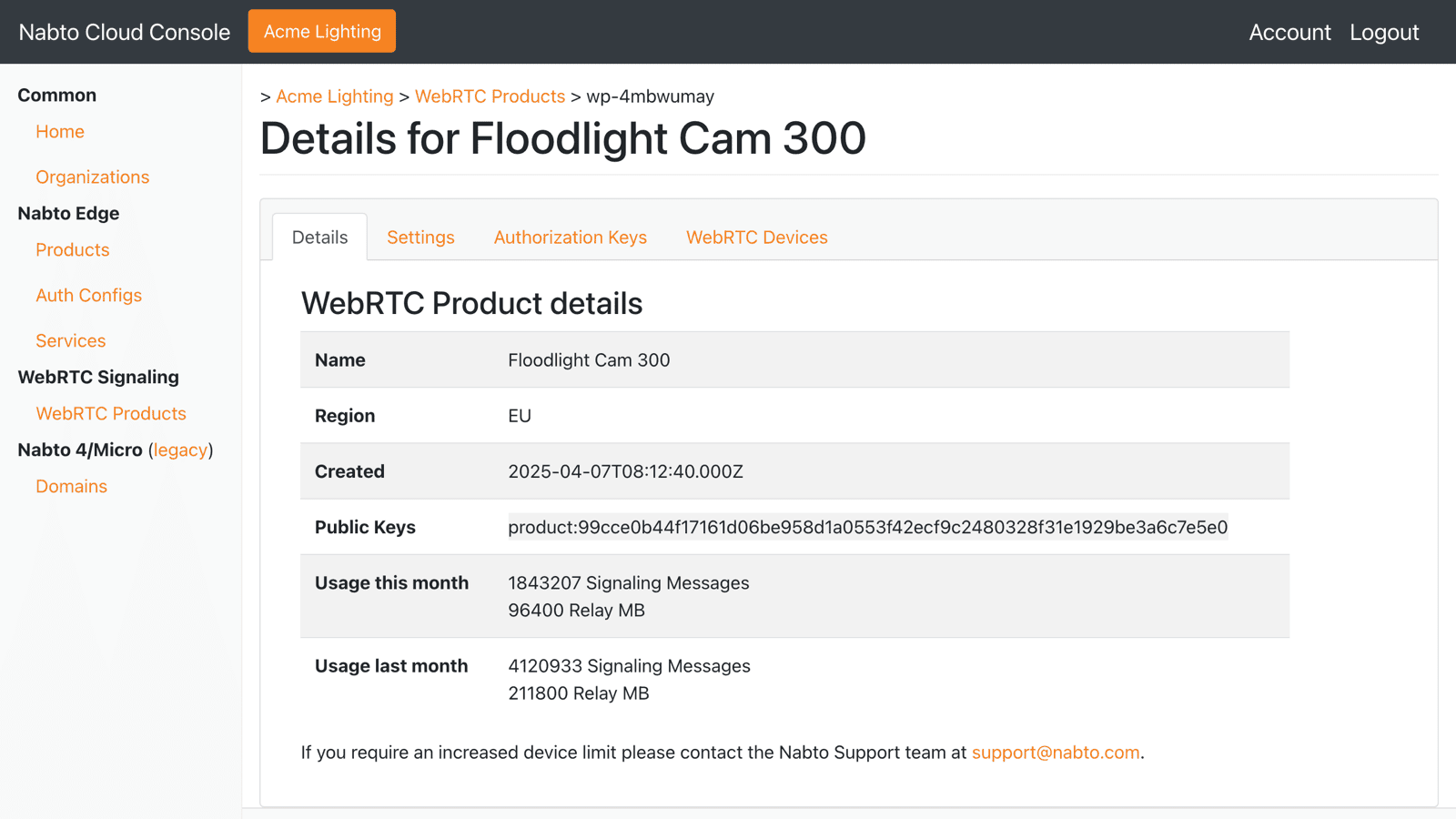
The product page has the following tabs:
- Details shows the product name, region, creation time, product public keys and usage for this and last month.
- Settings lets you rename the product and edit its tags. It also contains Delete Product.
- Authorization Keys lists the public keys used for central authorization of clients, described below.
- WebRTC Devices shows the device list described below.
Delete Product deletes the product and all of its devices. Every device in the product stops working and the deletion cannot be undone. Never use it on a production product.
Authorization Keys
Authorization keys are only needed if you use central authorization of clients. In that setup your own backend signs client access tokens with a private key and the signaling service validates the tokens with the matching public key registered on this tab.
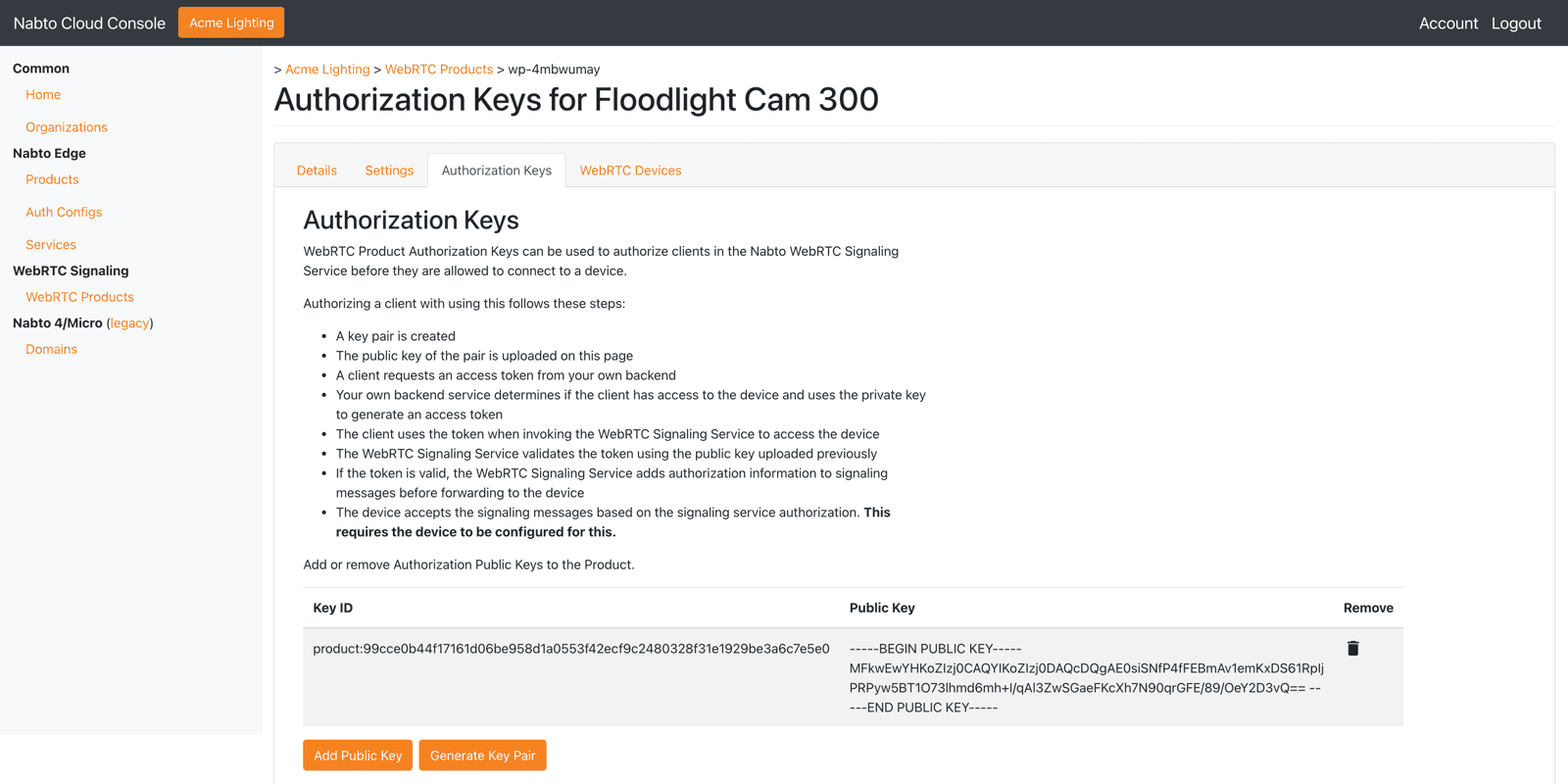
Click Add Public Key to paste an existing public key in PEM format. Generate Key Pair creates a key pair in your browser and shows the private key once. For production, create the key pair in your own backend infrastructure so the private key never passes through a browser.
Removing an authorization key makes tokens signed with the matching private key invalid. Only remove a key after your backend has stopped using it.
Device List
The WebRTC Devices tab lists the devices in the product with their device ID, name, batch number and creation time. Use the Device ID Filter to find a specific device, the batch number field to show a single batch and the arrow buttons to page through large products.
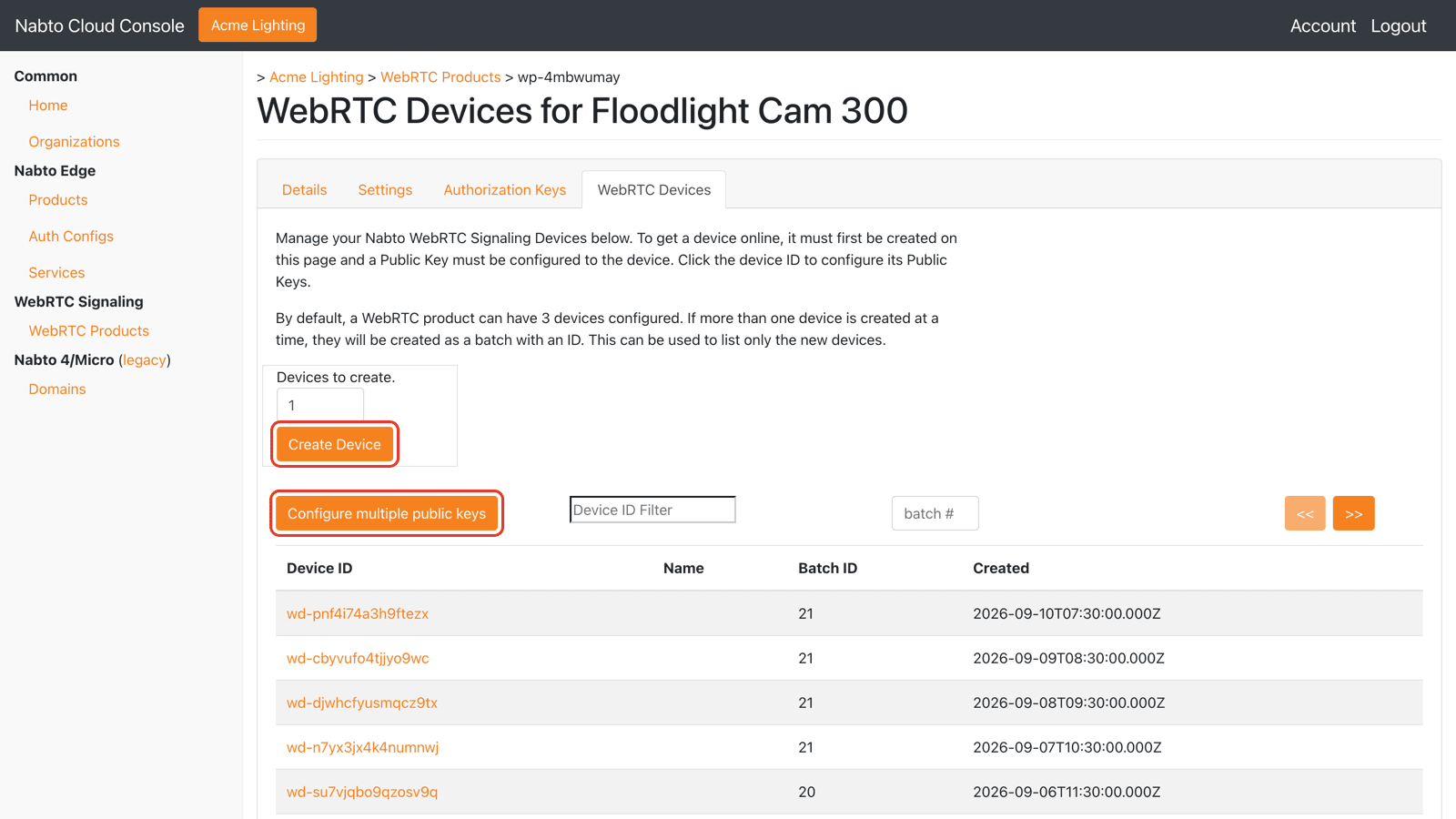
The Create Device and Configure multiple public keys buttons are used when provisioning new devices. See WebRTC Provisioning. The number of devices you can create is limited per organization. Contact Nabto support to have the limit raised.
Device Page
Click a device ID to open the device page:
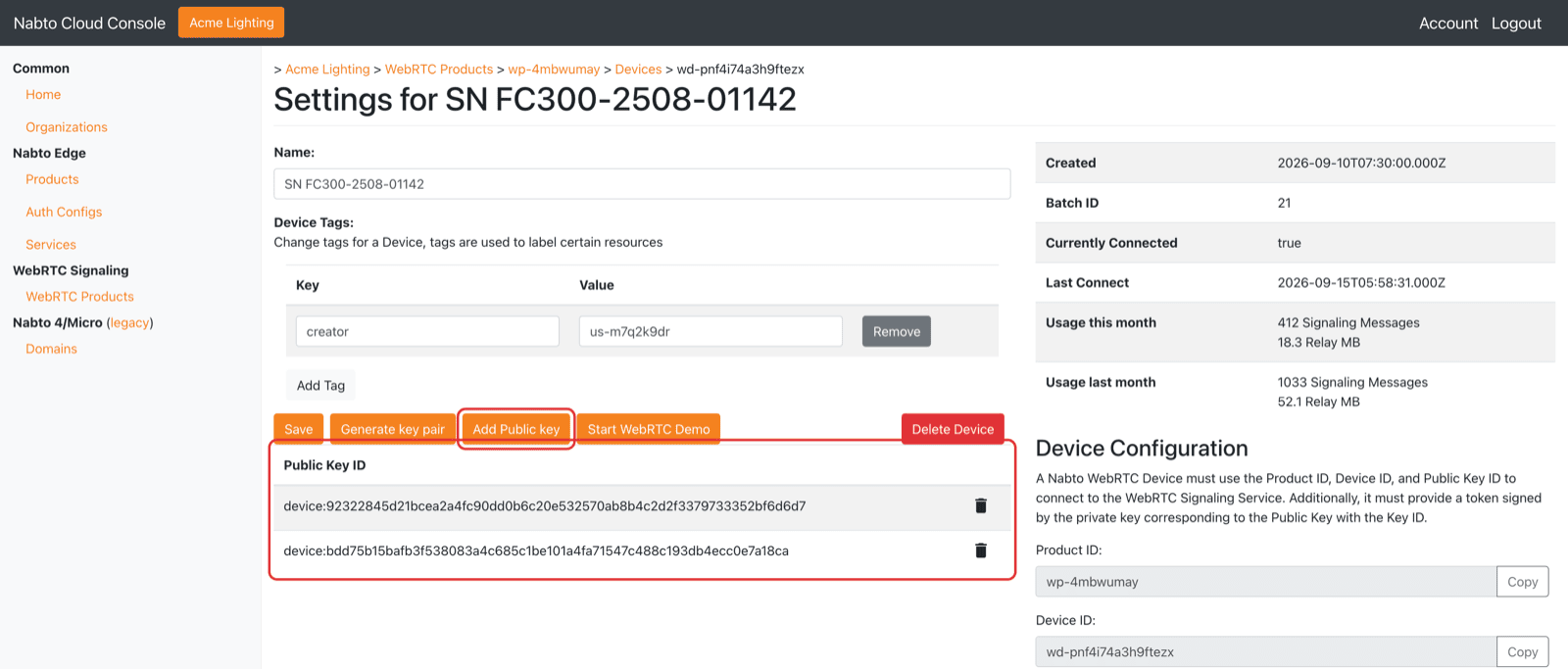
The right hand side shows the device’s status and is the first place to look when a customer reports that a device is offline:
- Currently Connected tells whether the device is connected to the signaling service right now.
- Last Connect tells when the device last connected.
- Usage shows signaling messages and relayed traffic for this and last month.
- Device Configuration shows the product ID and device ID to install on the device.
The left hand side lets you change the device name and tags. They are only shown in the console and have no effect on the device.
Below the buttons is the list of public keys registered for the device, identified by their key ID. A device can have several public keys and can connect with a private key matching any of them:
- Add Public key registers another public key, pasted in PEM format. Existing keys are kept.
- The trash icon removes a key.
- Generate key pair and Start WebRTC Demo create a key pair in your browser. They are meant for development and testing only.
Removing a public key from a device in the field disconnects it if it uses the matching private key. See the Production Safety Checklist.