
Provisioning Nabto Edge Devices
Production devices are typically provisioned in batches. The recommended process keeps each private key on its device and only sends fingerprints to Nabto:
- Create the device IDs in the console.
- Install a product ID, device ID and private key on each unit on the production line.
- Register each unit’s fingerprint with its device ID.
Only ever register fingerprints for device IDs you have just created in step 1. Setting a fingerprint on a device that is already in the field disconnects it. See the Production Safety Checklist.
Step 1: Create a Batch of Devices
On the device list of the product, enter the number of devices you need in Devices to create and click Create Devices. Each device counts towards your organization’s device limit. Only create the number you are about to produce.
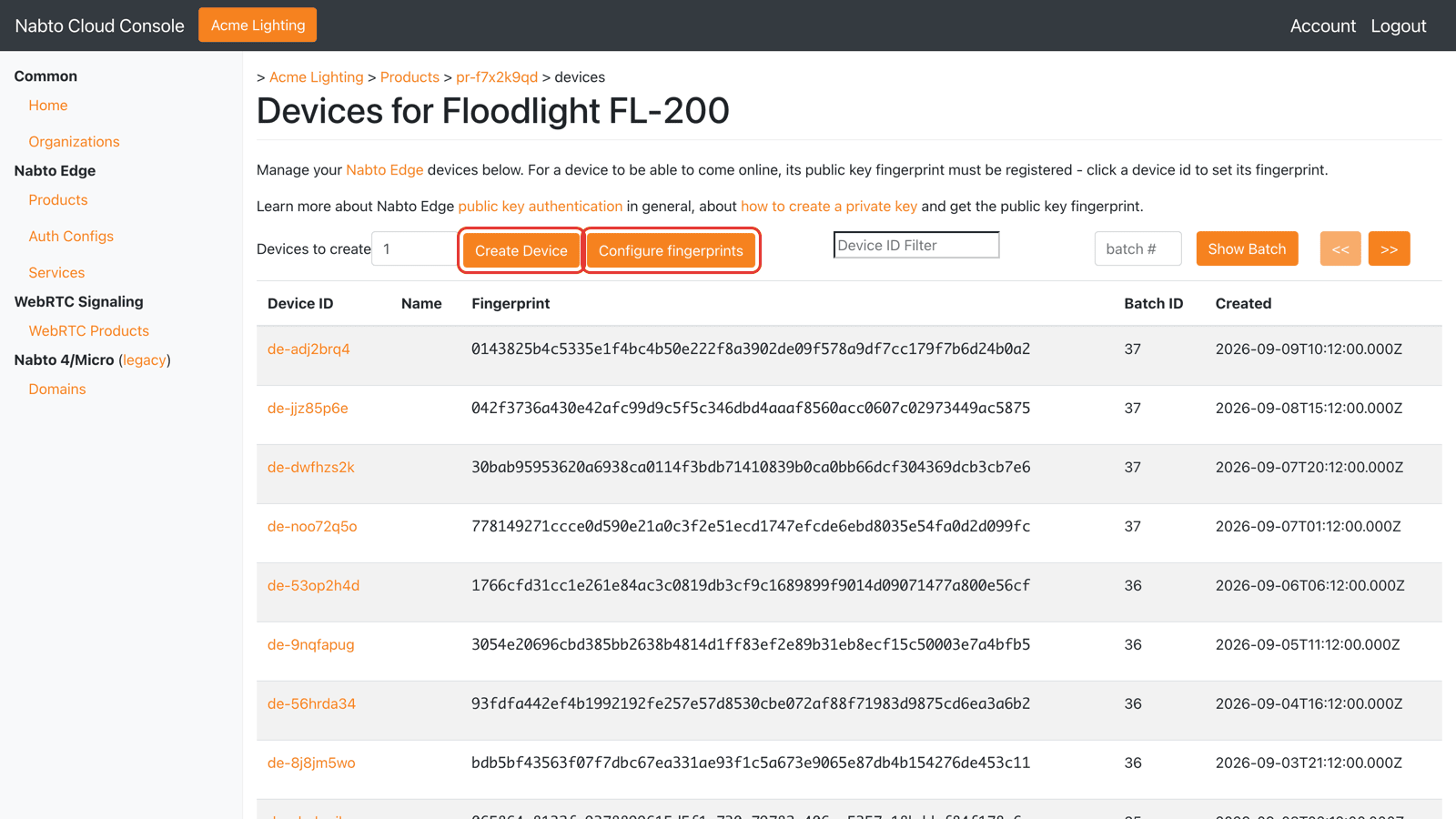
The console opens the new batch. The devices have no fingerprint yet and cannot attach until one is registered. Click Download as .csv to get a file with the new device IDs.
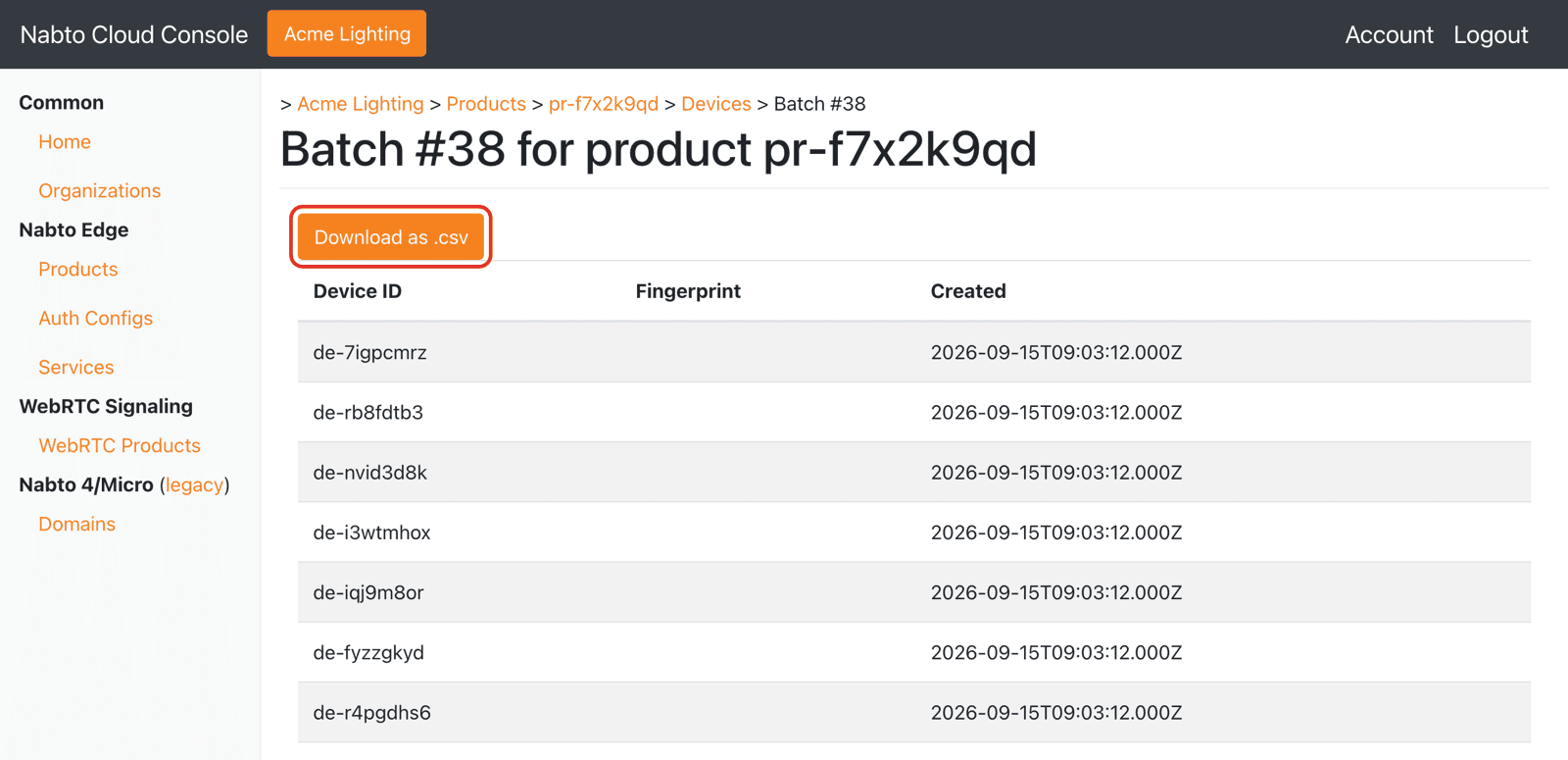
You can open a batch again later by typing its number in the device list and clicking Show Batch.
Step 2: Install Keys and IDs on the Devices
For each unit, the production line creates a private key on or for the device, installs it together with the product ID and one of the new device IDs and records the fingerprint of the key. The Embedded SDK documentation describes how to create keys and compute fingerprints. The result is a list of (device ID, fingerprint) pairs.
Step 3: Upload the Fingerprints
Save the pairs as a .csv file, one device per line:
de-7igpcmrz,9f2c4d1e8a7b6c5d4e3f2a1b0c9d8e7f6a5b4c3d2e1f0a9b8c7d6e5f4a3b2c1d
de-rb8fdtb3,1a2b3c4d5e6f708192a3b4c5d6e7f8091a2b3c4d5e6f708192a3b4c5d6e7f809
de-nvid3d8k,0f1e2d3c4b5a69788796a5b4c3d2e1f00f1e2d3c4b5a69788796a5b4c3d2e1f0
On the device list click Configure fingerprints, choose the file and click Submit.
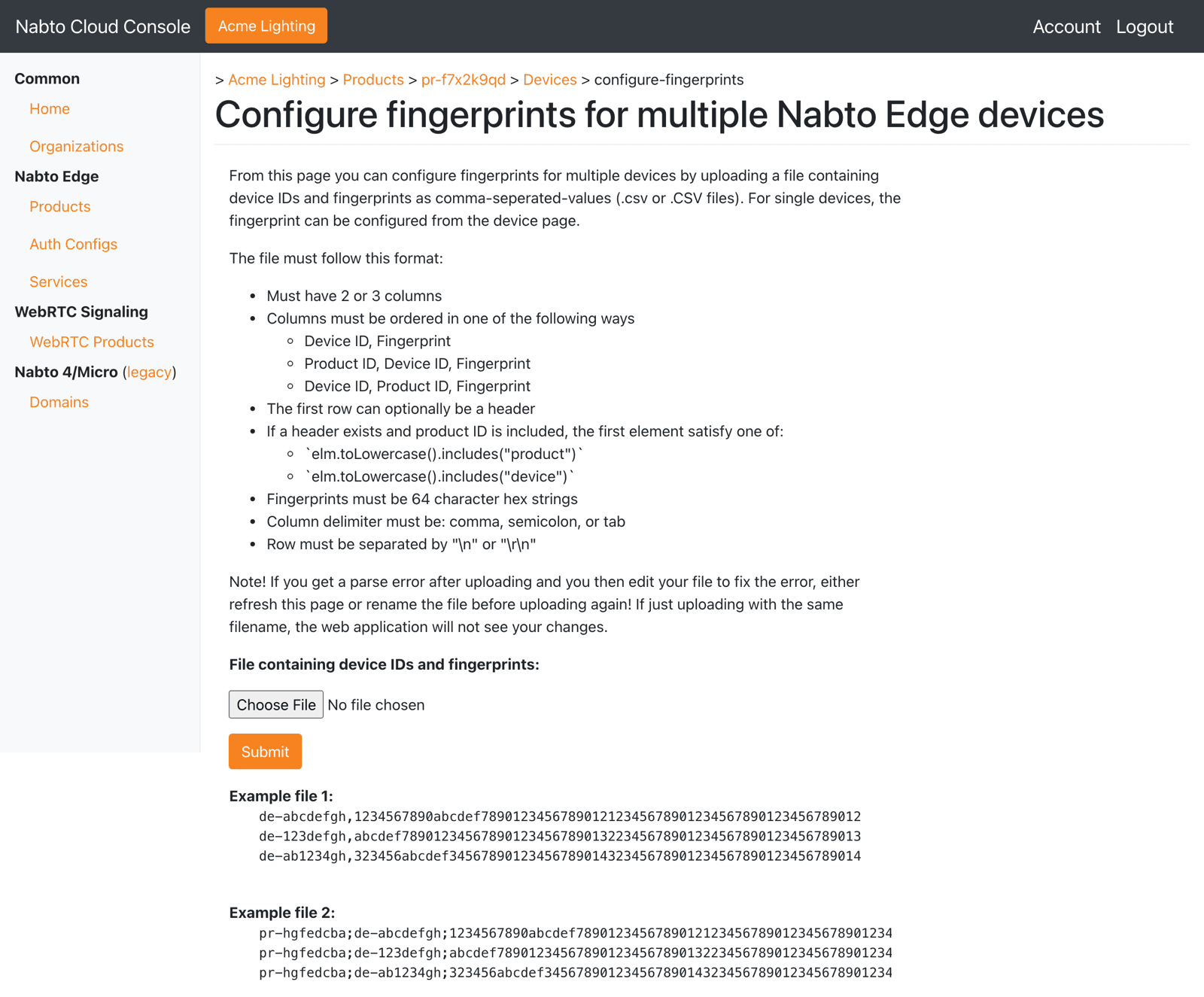
The file format is flexible:
- Columns can be device ID and fingerprint or include the product ID as well.
- Columns can be separated by commas, semicolons or tabs.
- The first line can be a header.
- Fingerprints must be 64 hex characters.
The upload is all or nothing. If a device ID does not exist in the product or a fingerprint is already used by another device, no fingerprints are changed and the console shows an error. Fix the file and upload it again. If you edit a file after a failed upload, reload the page or rename the file before uploading it again. Otherwise the browser uploads the previous version.
Keep the batch CSV and the fingerprint file from each production run. They are what you need to restore a fingerprint if one is ever changed by mistake.
Automating Provisioning
The same operations are available through the Cloud API as Create device batch and Bulk set device fingerprints. Use an API key with only the Nabto Edge permissions the provisioning system needs. See Managing API Keys.