
Nabto Edge Products and Devices
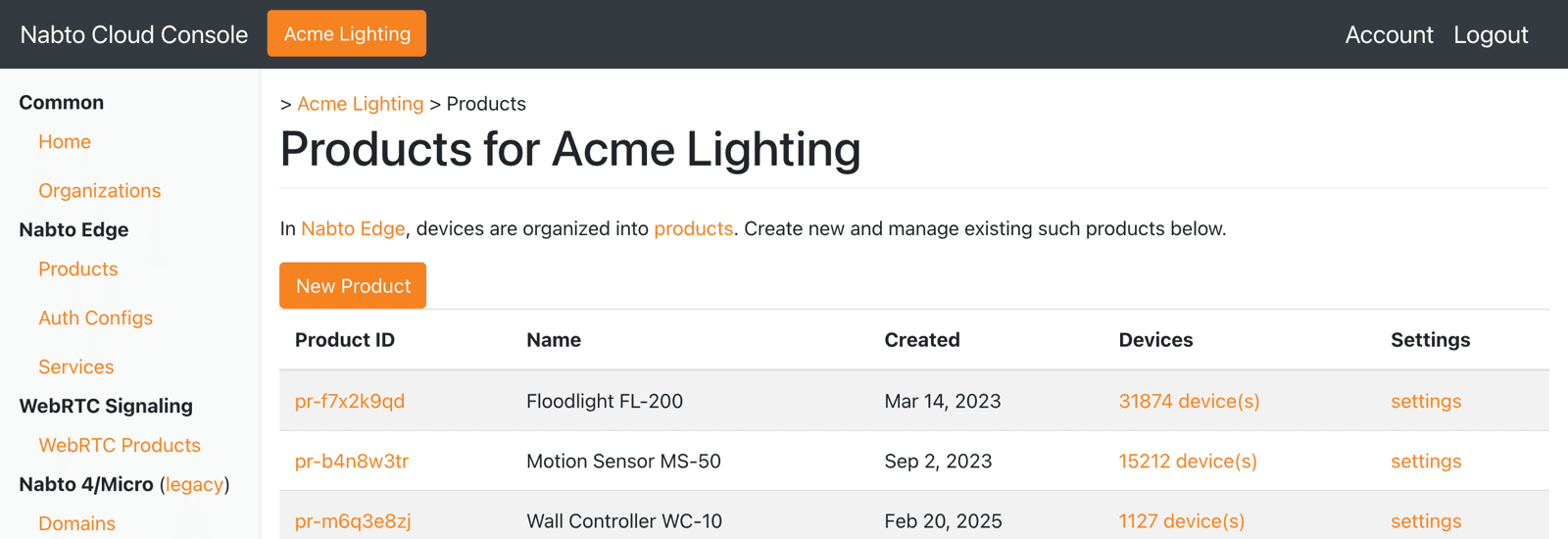
Open Products in the left menu to see the products in the current organization. Click a product ID or its device count to go to the device list. Click settings to open the product.
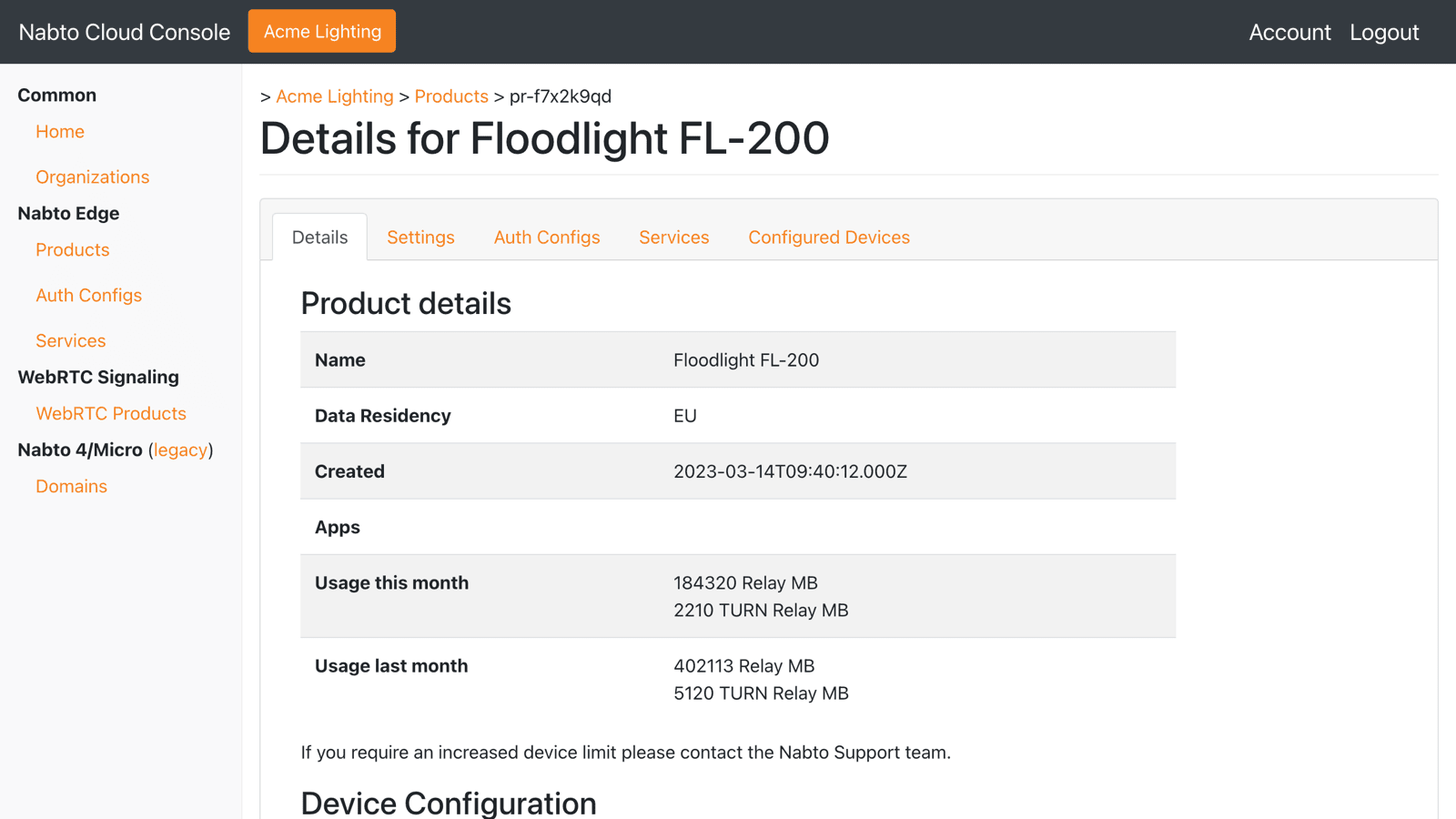
The product page has the following tabs:
- Details shows the product name, data residency and relay traffic for this and last month.
- Settings lets you rename the product and edit its tags. It also contains Delete Product.
- Auth Configs lists non-default client authorization configurations. Most solutions use Server Connect Tokens and need nothing here. See Server Side Connect Filtering.
- Services lists the web services devices in this product may invoke through the basestation. See Service Invocation.
- Configured Devices shows the device list described below.
Delete Product deletes the product and all of its devices. Every device in the product stops working. Never use it on a production product.
Device List
The device list shows every device in a product with its device ID, name, fingerprint, batch number and creation time. Use the Device ID Filter to find a specific device and the arrow buttons to page through large products. Type a batch number and click Show Batch to see all devices created in that batch.
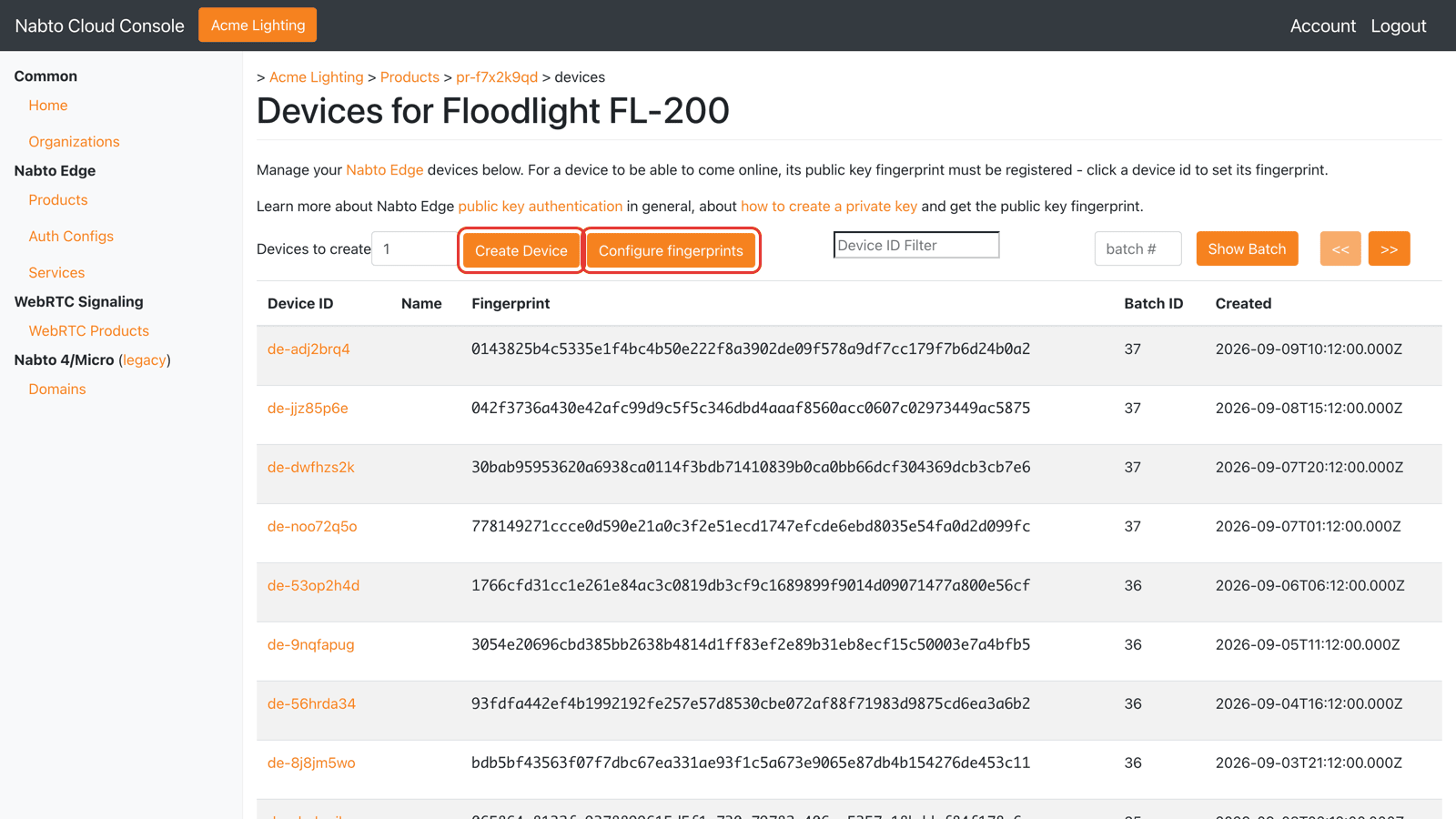
The Create Device and Configure fingerprints buttons are used when provisioning new devices. See Edge Provisioning.
Device Page
Click a device ID to open the device page:
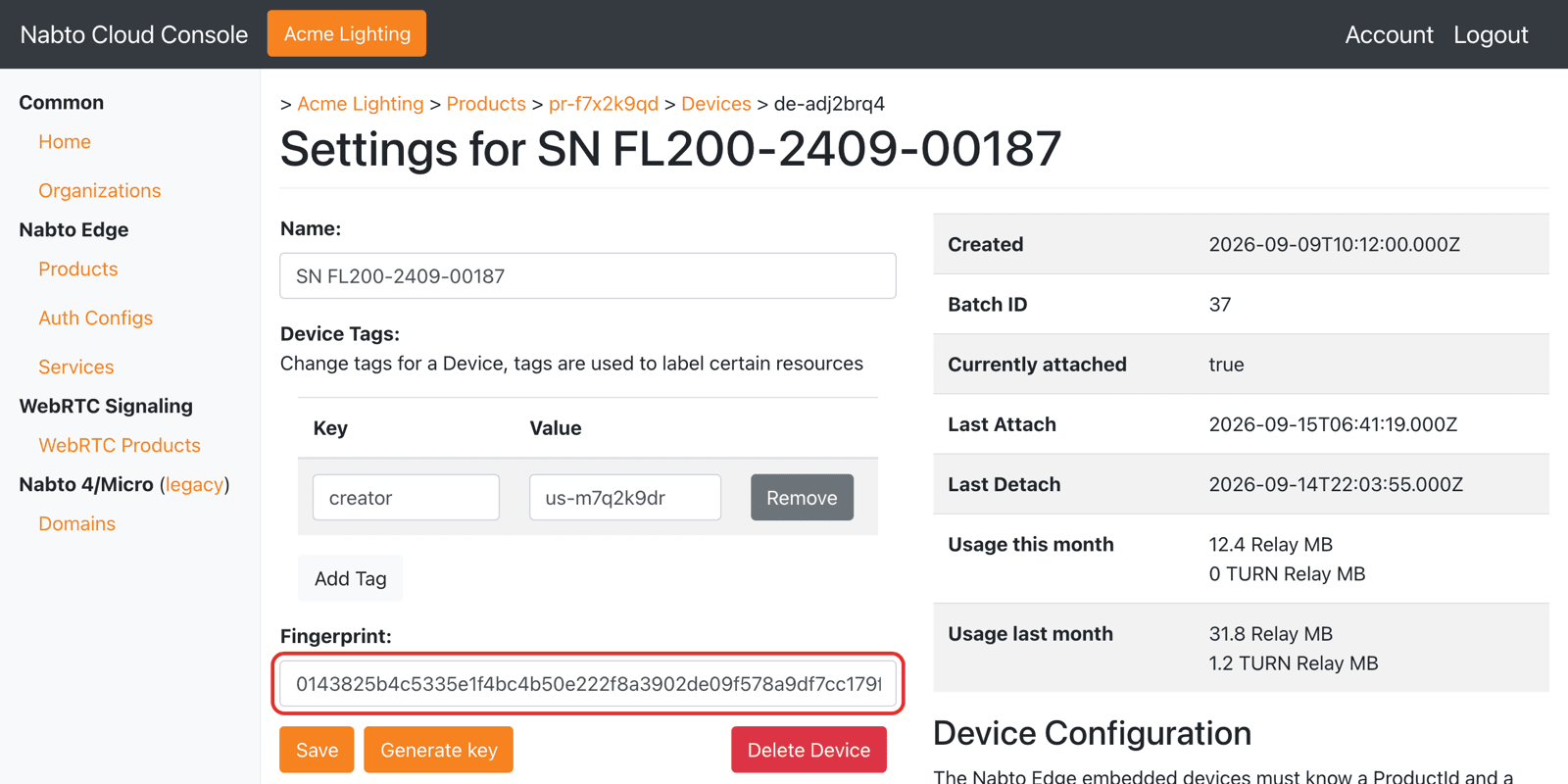
The right hand side shows the device’s status and is the first place to look when a customer reports that a device is offline:
- Currently attached tells whether the device is connected to the basestation right now.
- Last Attach and Last Detach tell when the device last came online and went offline.
- Usage shows how much traffic the device has relayed through Nabto servers.
The left hand side lets you change the device name, tags and fingerprint. The name and tags are only shown in the console and have no effect on the device. The fingerprint field is different: Saving a new value immediately changes which private key the basestation accepts for this device.
Changing the fingerprint of a device in the field disconnects it until a matching private key is installed on the device. See the Production Safety Checklist.
The Generate key button creates a key pair in your browser and stores the fingerprint. It is meant for development and testing only. Production keys must be created as part of your manufacturing process as described in Edge Provisioning.