
Logging In to the Nabto Cloud Console
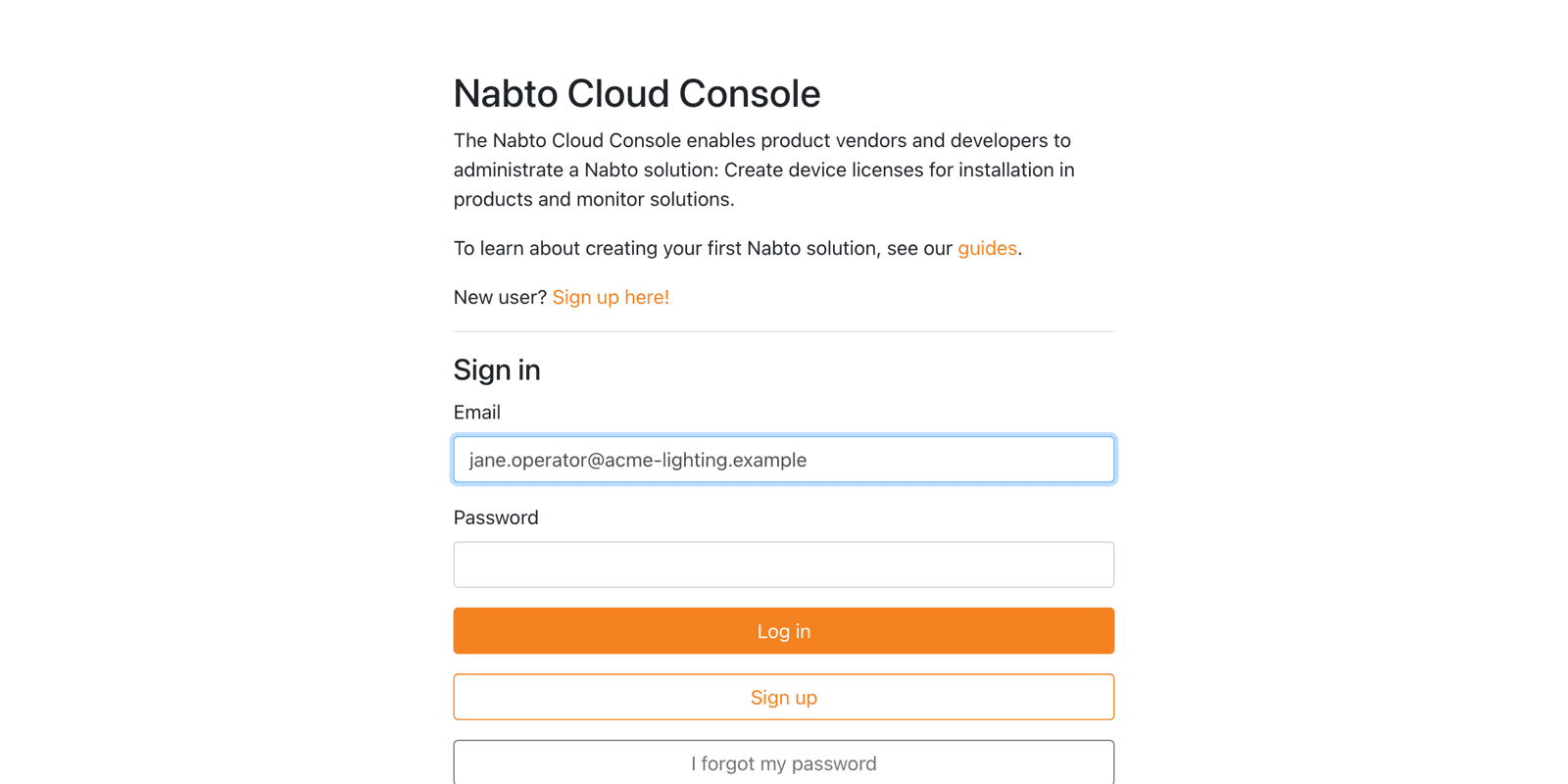
Log in at console.cloud.nabto.com with your email and password. If you do not have a login yet, use Sign up. An organization administrator can only add you to an organization after your login exists.
Multi-Factor Authentication
Accounts with enterprise status must use multi-factor authentication (MFA). This is typically the case for accounts with access to a production organization. If MFA is required but not yet enabled, the console takes you to the Account page and asks you to set it up before you can do anything else.
You can also enable MFA voluntarily from the Account page, reached through the Account link in the top right corner:
- Click Enable MFA.
- Scan the QR code with an authenticator app such as Google Authenticator.
- Enter the 6 digit code shown in the app and click Confirm.
- The console logs you out. Log in again and enter a code from the app when prompted.
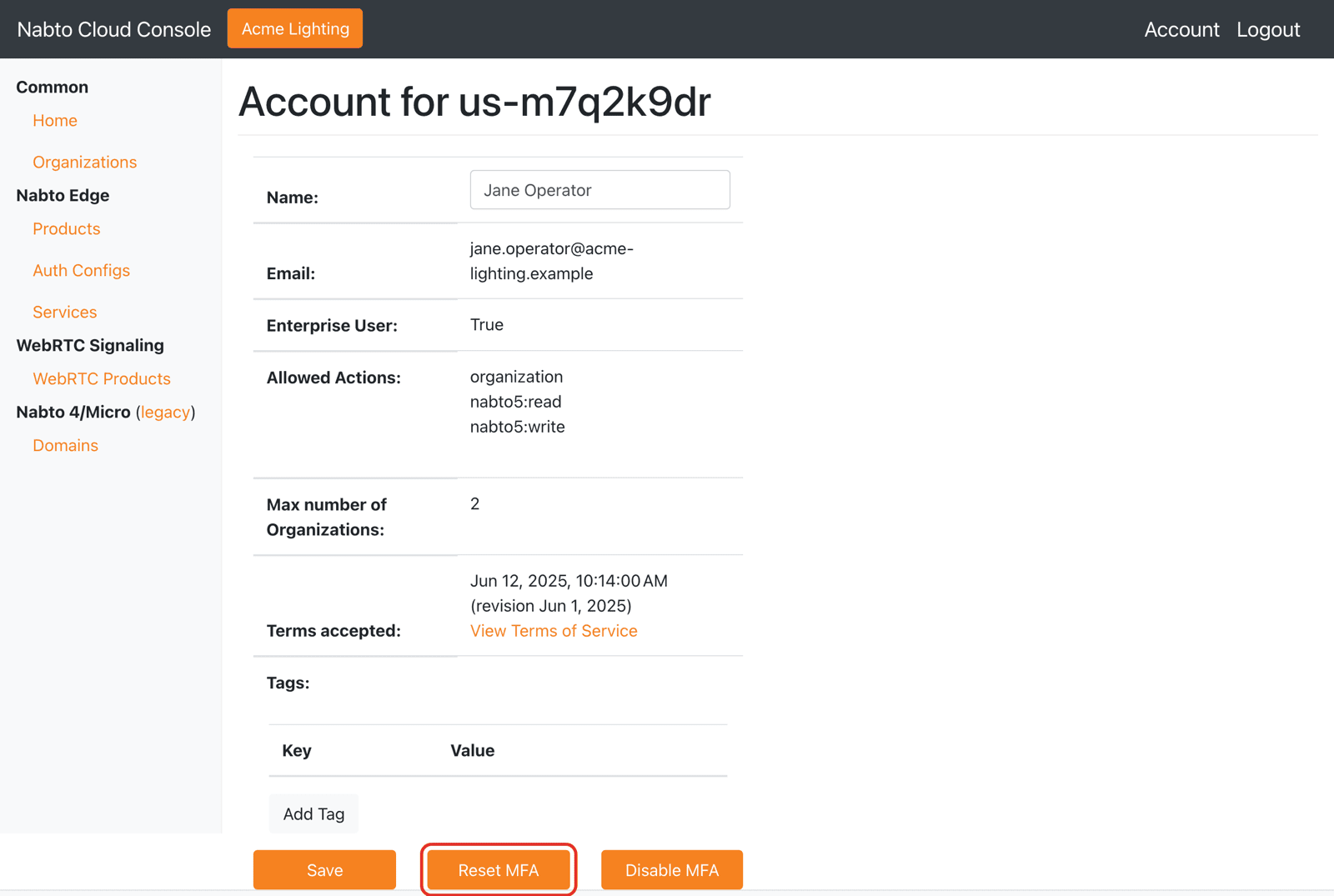
Once MFA is enabled the Account page shows Reset MFA (to move MFA to a new phone) and Disable MFA. The Account page also shows which actions your user is allowed to perform.
Next, see Organizations and Users.